
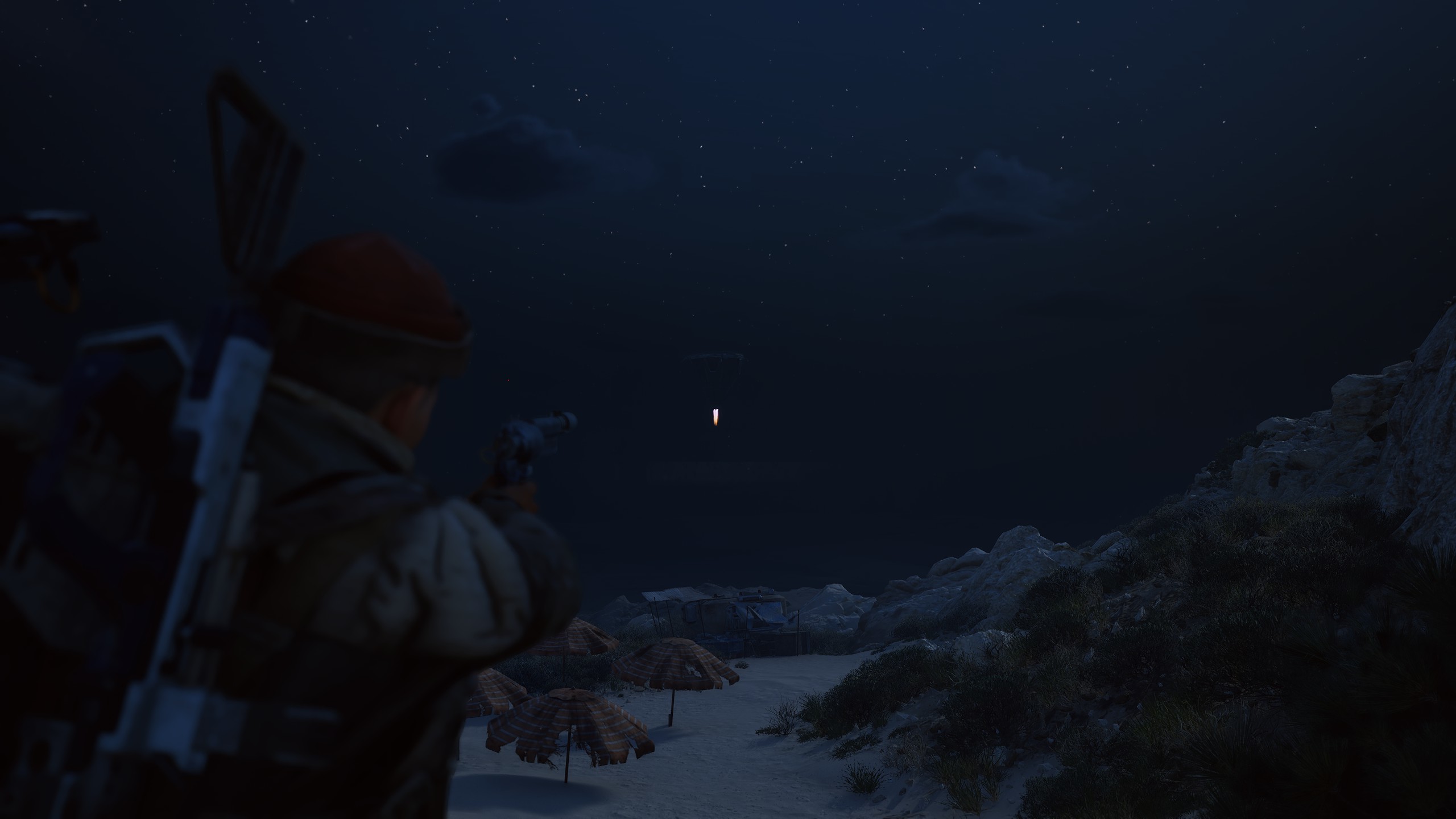
The ‘Out of Video Memory’ error in Unreal Engine 5 can be a significant hurdle for players diving into visually intensive games like Arc Raiders. This issue often arises when the game demands more VRAM than your graphics card can provide, leading to frustrating crashes and interruptions during gameplay. Fortunately, there are several workarounds and fixes available for PC players that can help mitigate these crashes and optimize performance. This guide will explore practical solutions, troubleshooting steps, and settings adjustments tailored to enhance your gaming experience.
Understanding the ‘Out of Video Memory’ Error
The ‘Out of Video Memory’ error typically indicates that the game is trying to use more graphics memory than your VRAM can handle. This can occur due to high-resolution textures, detailed models, and complex shaders that Unreal Engine 5 employs to create its stunning visual environments. Additionally, background applications can further strain the system’s available resources. Players may experience stuttering, frame drops, or outright crashes, especially during intense gameplay scenarios. Therefore, understanding how to manage your system’s resources is crucial for a smoother gaming experience.
Adjusting Graphics Settings
One of the most effective ways to tackle the ‘Out of Video Memory’ error is by adjusting the in-game graphics settings. Reducing the quality of textures, shadows, and post-processing effects can significantly decrease the VRAM load. Here are some recommended settings:
- Lower Texture Quality to Medium or Low.
- Reduce Shadow Quality to Low.
- Disable or lower Anti-Aliasing settings.
- Set Post Processing to Low.
- Turn off Ray Tracing if enabled.
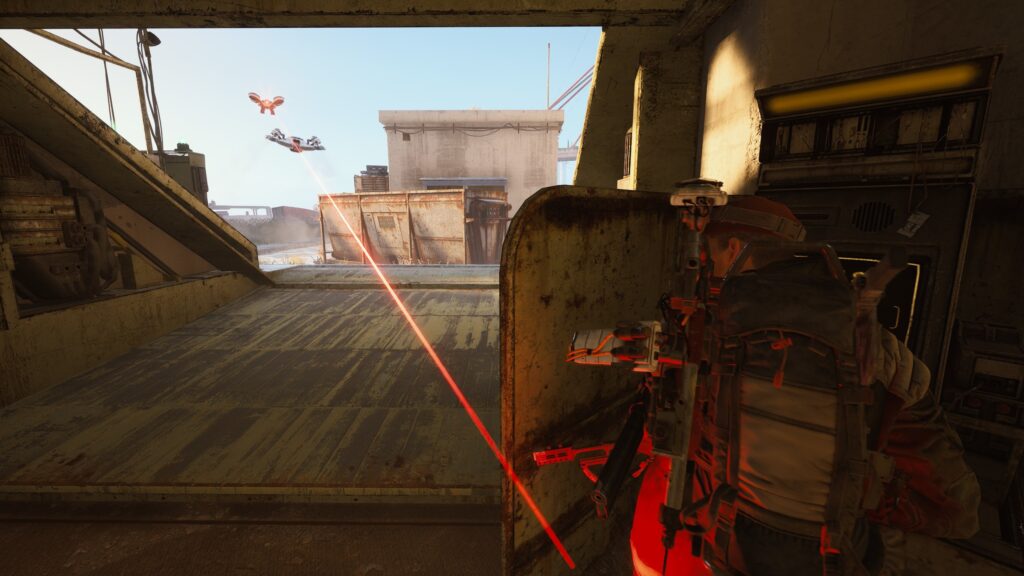
These adjustments can help free up VRAM and improve stability, making it easier to run Arc Raiders without encountering crashes.
Updating Graphics Drivers
Keeping your graphics drivers up to date is essential for optimal performance in any game, especially those built on Unreal Engine 5. Outdated drivers can lead to inefficient memory management and can exacerbate the ‘Out of Video Memory’ errors. Players should regularly check for updates from their GPU manufacturers (NVIDIA, AMD) to ensure they are utilizing the latest enhancements and bug fixes. To update your drivers, visit the official websites or use the respective software tools (GeForce Experience for NVIDIA or Radeon Software for AMD) to streamline the process.
Configuring Virtual Memory
Another workaround to consider is adjusting your system’s virtual memory settings. Virtual memory acts as an overflow area for your RAM and can help alleviate the pressure on your VRAM. To configure virtual memory, follow these steps:
- Open the Control Panel and navigate to System and Security.
- Click on System, then select Advanced system settings.
- Under the Performance section, click Settings.
- Go to the Advanced tab and click on Change under Virtual Memory.
- Uncheck ‘Automatically manage paging file size for all drives’ and set a custom size that is at least 1.5 times your RAM.
Increasing the virtual memory can provide a buffer that may help prevent the ‘Out of Video Memory’ crashes during gameplay.
Hardware Considerations
If the problem persists despite software adjustments, you may need to consider upgrading your hardware. Insufficient VRAM is often the culprit in high-demand games. Players experiencing frequent crashes should evaluate their current GPU and consider investing in a card with more VRAM. The following table outlines recommended GPUs for playing Arc Raiders smoothly:
| GPU Model | VRAM | Recommended Settings |
|---|---|---|
| NVIDIA GeForce RTX 3060 | 12 GB | High |
| AMD Radeon RX 6700 XT | 12 GB | High |
| NVIDIA GeForce RTX 3080 | 10 GB | Ultra |
| AMD Radeon RX 6800 XT | 16 GB | Ultra |
Upgrading to one of these models can provide the extra VRAM necessary for a seamless gaming experience in Arc Raiders.

- Unreal Engine 5 ‘Out of Video Memory’ Crashes: Proven Workarounds and Fixes for Arc Raiders PC Players – June 18, 2026
- Crafting Priorities in Arc Raiders: What to Build First for Real Power – April 1, 2026
- The Strategic Implications of Permanent World Changes Caused by Major ARC Attacks – February 26, 2026
Leave a Reply